O'Scrap Blog Train

O'Scrap Blog Train
Member of O'Scrap Blog Train

Search This Blog

Stores I Sell At

>

Registered and Protected

Featured Post

Bunny Love

PTU Tutorial Supplies needed: Paint Shop Pro X or any version Spring_and_Easter by Alehandra Vanhek  here   (you must be licensed to use...

Popular Posts


Pammer's Passions

About Me

My photo
I've been working with PSP since 2004 and I love creating tags, stationery, cluster frames, scrap kits and templates.I also enjoy my children, grandchildren, reading, music and movies.

Followers

Blogs I Luv !

Blogs I Luv !
Addictive Pleasures

Artistic Tag Passions

Millie's PSP Madness

My Tagging Addiction

Escape From Reality

Miggins Tuts

Designz by Shelly

Melissaz Creationz

Roses Tag Templates
Showing posts with label animated. Show all posts
Thursday, September 16, 2021

No scrap tutorial


Capsulated Tag

This tutorial is written for those with a working knowledge of  PSP.
Disclaimer update: August 17, 2024, the store I purchased this tube from has since closed. This tutorial provides you with the current link adjustment, if you don't have a license please go here to acquire one.

Supplies needed

PSP 9 or any version
Tube: Elias Chatzoudis you can purchase at  Here
Font   Affair1 you can get it at here
A scenic image of your choice
A background image of choice, I used a gazebo
Muras Meister Copies Filter Plugin free get here Here
Bordermania Plugin Filter free get it here here

Let's begin !

Open a 700 x250 image
Open your tube and choose 2 colors from it, a medium color for foreground and a dark for background
Copy tube and paste as a new layer
Effects - plugins - Muras Meister - Copies

Adjust - blur - radial blur

Layers - merge - merge visible
Effects - distortion effects - warp

Click your selection tool, then choose custom select

settings:
Hit your delete key - then deselect
Layers duplicate - image - mirror - merge visible - select all- new raster layer
Copy your scenic image and paste into selection and move it to the top
Effects - plugins - Flaming Pear - Aetherize

Lower opacity to 60
Copy the gazebo tube and paste as a new layer and resize it to fit
Effects - plugins - Flaming Pear - Aetherize
Copy and paste your tube as a new layer,  resize if needed 
Add a drop shadow of your choice
Effects - plugins - Bordermania - Capsule

Add artist name, copyright and URL, your license number and your text.
Merge layers visible  - select all - float - defloat
Selections - modify - select selection borders

New layer and fill with color of your choice
Merge layers visible.

You're Done !
Hope you enjoyed my tutorial.

Other variations of this tag


PTU Tutorial


Attention Class Dismissed
An animated tut


Note: This tut was written for those with a working knowledge of PSP and is written solely by me, any resemblance to anyone else’s is purely unintentional.
Disclaimer update: August 17, 2024, the store I purchased this tube from has since closed. This tutorial provides you with the current link adjustment, if you don't have a license please go here to acquire one.

Items needed:

PSP 9 or any version
 Classroom template Here
PTU Scrap Kit Back2School  (store closed)
A wood pattern of your choice
 I used Elias Chatzoudis you can purchase at here
Scribble regular font here
Jasc Animation Shop here


  Let’s begin:

Open template – shift +D – close original – delete credit
Highlight floor layer – select all, float, defloat – selections – modify – expand by 2
Choose your wood pattern and paste as a new layer – selections – invert – delete
Choose the ceiling layer – selections – select all, float, defloat, expand by 2- fill with white
Highlight your back wall select, float, defloat, copy paper 2, paste as new layer selections, invert, delete
Apply a drop shadow   -1/3/70/6
Highlight the left wall, select, float, defloat, expand 2, copy paper 07, paste as new layer, invert, delete – add same drop shadow
Apply same paper to right wall and apply drop shadow
Open corkboard element, paste as new layer, resize 40%
Open yellow leatherbonds, copy, paste, resize 20% and place as shown, duplicate and mirror
Open and copy notepaper yellow, paste , resize 20%, add drop shadow
Open pushpin, copy, paste, resize 70%, place as shown
Open chalkboard2, copy, paste, resize50%, drop shadow
Open notepadframered, copy, paste, resize 60%
Effects, geometric effects, perspective horizontal, distortion 50 transparent checked
Image – mirror –resize 80% - move as shown
Magic wand tool click in free space of frame, expand by 2
Copy and and paste paper 06TS as a new layer – invert – delete – keep selected
Open and copy tube, paste as a new layer place where you desire, invert selection and delete
Copy and paste your full body tube
Magic wand click inside the computer screen and paste paper12Ts, invert, delete, select none
Now, if you like you can any embellishment you like
On the computer screen add a new layer and type ATTENTION  
New layer and type CLASS DISMISSED and duplicate
 Add your name , the artists copyright, URL and your license number


Animation

X out class dismissed layer, leaving Attention layer open and copy merged
Go to animation shop and paste as a new animation
Back to PSP x out Attention open class dismissed, copy merged – go to animation shop and paste after current frame
Repeat this process two more times
In Ani Shop click in frame 1 , edit select all, frame properties 75
Save as a gif and you’re done


Hope you enjoyed my tut !!
No scrap tutorial


Blinking Blinky Babies

Note: This tutorial is written for those with a working knowledge of PSP and is purely of my own imagination, any resemblance to any other is purely coincidental and unintentional.

Articles needed:

PSP9 or any version
Mura's Meister Copies Here
AAA Frames texture Frames Here
Font of choice I used Scribble Here
Filter Factory H - RGB Offset Here
Tube/s of choice. I used Toosh Toosh, you must have a license to use her work Here

Open a 650 x 250 transparent image
Copy and paste the tube to the pallette
Apply Mura's meister copies

Adjust, blur, radial blur

Apply Filter Factory H - RGB Offset 2 times at default settings

Merge all layers together
Apply AAA Frames - Texture frames - width 10

Copy and paste your tube and position center
Copy your second tube and move to right
Do the same with  your third tube and place left
Apply a drop shadow to all
Merge all layers
Now on your tubes copy the eyelids for each tube you used and place in position over the eyes
Rename each layer, I named mine 1,2 and 3
Add artists info, copyright and your name
You are ready to animate
Close all eye layers
Make sure the bottom layer is highlighted and edit, copy merged
Go to animation shop and paste as a new animation
Back to PSP and open all eye layers and copy merged
Back to animation shop and paste after current frame
Stay in animation shop and edit, select all and change frame properties to 75

Note:
For the eyes to blink one at a time open each eyelid one time and paste in animation shop 
Go back to PSP close the opened eyelid and open next and paste after in animation shop
Follow this procedure with all eyelid layers
 Save your tag as a .gif

You're done!
Thanks for viewing my tut. !!!!
Other examples (click image to view animation)


            No scrap, animated tutorial


Aetherized Mermaid

Items needed:

                                      PSP 9 or any version
Mura’s Meister Copies here
Flaming Pear Aetherize here
Flaming Pear Flood  here
And a number of PSP plugins
Tube: Elias Chatzoudis, you need a license to use , you can purchase here
Font of choice, I used Mistral  here

Disclaimer:  Written August 20, 2012 by Pamela. This tutorial is written purely from my own imagination, any, similarities to any other is purely coincidental. It is also written for those with a working knowledge of PSP.
Disclaimer update: August 17, 2024, the store I purchased this tube from has since closed. This tutorial provides you with the current link adjustment, if you don't have a license please go here to acquire one.

Let’s begin !

Open a  550 x 550 transparent image
Copy and paste your tube as a new layer
Apply Mura’s copies with these settings:


Now apply, adjust – blur – radial blur, settings:


Click effects, effects browser – distortion effects – Ripple – small waves right


Highlight your selection tool and choose custom select

Use these settings:


Keep selected, edit – copy, selection – invert –delete
New layer, paste into selection, select none
Image – mirror
Merge visible
Effects – Distortion effects – Wave


Layers – duplicate
Stay on your copy, apply Flaming Pear – Aetherize

Duplicate this layer 2 times, rename the original – flood 1, the copies, flood 2 and flood 3
Highlight the flood 1 layer and apply Flaming Pear – Flood

Apply flood effect to flood 2 and 3, changing the ripple size to 40 and then 60.
Lower opacity to all 3 layers to 85
Copy and paste your tube as a new layer
Apply drop shadow of choice
If you have a second tube copy and paste, resize and place as you wish (see my tag as example)
Now, click on your merged layer or bottom layer and copy
Click on the top layer and paste as a new layer
Selections – select all – select selection borders – 10
Selections - invert  - delete.
Selections – select all – modify – select selection border – 2
New raster layer and fill with black.
Add your license, artist and copyright information.

Animation
Open Animation Shop
Go back to PSP, close flood 2 and 3 layers
Copy merged
In Ani shop paste as a new animation
Go back to PSP and close flood 1 layer and flood 2 layer and copy merged.
Back to Ani Shop and paste after current frame
To PSP, close flood 2, open flood 3 and copy merged.
Back to and Ani Shop and paste after current frame.
Run your animation and adjust frame properties if you need to.


Save and now you’re done !

Thanks for viewing my tutorial ! 

No Scrap Tutorial


Curled and Whirled

Supplies Needed:

Tube of choice, I used Amberly Berendson, you can purchase at DAH
Font of choice, I used Limit- Break, here
Mura’s Meister Copies, here
Andrews Filter 57 – Curled and Whirled, here
Xero – Art Grain and Porcelaine, here
Xenofex2 – Constellation, here

Disclaimer:  Written September 2, 2012 by Pamela. This tutorial is written purely from my own imagination, any, similarities to any other is purely coincidental. It is also written for those with a working knowledge of PSP.
Disclaimer update: August 17, 2024, the store I purchased this tube from has since closed. This tutorial provides you with the current link adjustment, if you don't have a license please go here to acquire one.

Let's begin:

1. Open a 600 x 350 transparent 
2. Copy and paste your tube
3. Apply Mura’s copies (wallpaper rotate) default settings
4. Apply  radial blur  - spin checked , strength 80, elliptical checked, H – 0, V – 0 and P – 0
5. Apply Andrew’s Filter 57 – Curled and whirled (default settings)
6. Add a new layer and fill with a color from your tube
7. Select all - modify – contract 8. Hit your delete key
8. Select none
9. Apply Xero – art grain and play with the settings until you’re satisfied
10.  Apply drop shadow of your choice, I used 2, 2, 50 and 5
11. Copy your tag and paste as a new layer and move to the right (see my tag for reference)
12. Duplicate your tag – on the original apply motion blur – angle 328
13. On tube copy apply Xero – Porcelaine (default settings) and apply drop shadow of choice
14. Copy and paste tube again and move left (see tag for reference)
15. Duplicate tube and apply motion blur to the original changing the angle to 45
16. Apply drop shadow to copy of tube
17. Highlight your background layer and duplicate 2 times making a total of 3 copies
18. Rename 1, 2 and 3
19. Close layers 2 and 3 make sure you’re on 1 and apply constellation


20. Repeat for layers 2 and 3 changing the random seed amount.
21. Add artist copyright, url and your name

Animation

1.       Open Animation Shop
2.       In Paint Shop Pro, close layers 2 and 3 and copy merged
3.       Go to AS and paste as a new animation
4.       Back to PSP, close layer 1 open 2, copy merged
5.       In AS paste after current layer
6.       Back to PSP and repeat the same for layer 3.
7.       Run your animation and see if you like what you see or need adjusting.
8.       When satisfied save your tag.

Thanks for viewing my tutorial !!!!!!

Variation

1.       Open a 400 x 550 image
2.       Follow steps 2 through 10
3.       Add a new layer and move to the bottom
4.       Fill with a color from your tube, I used 704495
5.       Highlight the filtered layer and change blend mode to luminance legacy
6.       Merge down
7.       Apply FM Tile Tools – blend emboss 2 times
8.       Next choose an accent, I used lips and pasted as a new layer and resized 60%
9.       Apply Mura’s copies
10.  
11.   Duplicate this layer 2 times and rename them 1, 2 and 3
12.   Repeat steps 19 and 20
13.   Add artist copyright, url and your name
14.   Follow the above instructions for Animation Shop

Hope you enjoyed !!!!! 

FTU Tutorial

To My Hearts Desires

Disclaimer:  This tutorial is written by Pamela on January 27, 2014 from my own imagination.
Any resemblance to any other is purely coincidental. I thank each and every designer whose creations I’ve used to create this tutorial.

This tutorial was written for those with a working knowledge of Paint Shop Pro.

Supplies needed:

PSP X6 or any PSP version
Tube of choice, I used Eugene Rhevskii ,you can purchase a license, here
Mask of choice, I used Kylie-M2, look for CMC_2012Masks1_HeartLove, thanks Kylie, here
FTU scrap, Pink Candy, thanks Vaybs here
Animation 251 by Simone, thanks Simone, here
Jasc Animation Shop here
Font of choice , I used Beautiful Ink, here

Let’s begin:

Open a 700 x 700 transparent image, fill with white
New layer, select all
C/p paper 2, paste into selection, select none
Apply Kylie_M2 mask, merge group
C/p frame9, resize 80%
Move frame to top (see my tag}
Take your magic wand and click inside the frame
Selections, modify, expand by 5
C/p paper 9 below the frame layer
Selections, invert, delete
C/p element 15, place to the left
C/p tube, resize 50%, place to the right
C/p element 5, resize 50% and turn as shown with your deform tool
C/p element 2
C/p element 3
C/p element 2
C/p element 23, resize 50%
Duplicate and place as shown
Resize tag if you like
Add your artists copyright and URL and your name.
Delete the white layer
Close the tube layer , click on the mask layer and merge visible


Animation

Open Animatiom Shop
Open animation 251, Shift + D, close original
Back to PSP and copy the bottom layer
Back to Animation Shop and paste as a new animation
Right click and duplicate selected until you have 21 frames
On the animation click on frame 1 and go to edit, select all , copy
Click on frame I of the background, edit, select all
Go back animation and click and drag onto background where you want
Go back to PSP, close background and copy your tube
Duplicate these in the same manner
Following the same process above , click drag and drop onto background frames.

Thank you for viewing my tutorial ! 

Friday, January 22, 2021

FTU Animated Tutorial

Turbulent Sea Tag


Disclaimer:


 This tutorial was originally written August 12, 2012 and revised on January 14, 2022 from my own imagination and any similarity to anyone else is coincidental. It is for those with a working knowledge of Paint Shop Pro. All broken links are repaired. I hope you enjoy doing my tutorial.


Items needed:
PSP X or any version
Tube I used Elias Chatzoudis
A license is needed for this art, you can purchase at CDO
Font:I used Aquaduct Plain Here
A misted waterscene
Encapsulated selection by me

Filters needed:
Flaming Pear Aetherize demo Here
Flaming Pear Flood Here
Eye Candy 4ooo - jiggle Here
Tramages Pool Shadow Here


Supplies: 
4Shared  Mediafire
includes the misted water scene and the selection


Let's begin !

700 x 250 image
Open all tubes and supplies and minimize
Selections - Load / Save Selections - Load selection from alpha channel
Select the capsulated click ok or load


Note: to work this tut you must keep the selection running unless otherwise specified
Open your misted scene and choose 2 colors and make a gradient


Fill selection with gradient 
New layer - copy misted scene and paste into selection
effects flaming pear aetherize


apply flaming pear flood


Lower the opacity to 40 on both layers and merge visible
duplicate 3 times and x out the bottom (merged) layer
Rename remaining layers water 1, water 2 and water 3
Highlight water 1 layer
Selections - select none
Activate your freehand selection tool -= set to point to point

Draw around water area 


Effects - plugins eyecandy 4000 - jiggle


Apply the same effect to water 2 change bubble size to 15 and click random seed

Water 3 - change bubble size to 20 and click random seed
Select none
Click on the bottom merged layer select all - float - defloat
Selections invert now click on each water layer and hit delete
Selections invert -keep selected

Click on the top layer open your tube and paste as new layer 
resize if needed
apply the aetherize filter
Highlight your top layer , now add a new layer


Fill new layer your gradient
Selections - load selection from alpha channel - load
Selections - invert - delete
Selections - invert
Selections - modify - contract by 5
Selections - modify - select selection borders


Selections - modify - expand 2 - new layer - fill with gradient
Apply tramages pool shadow (default settings) - select none
Apply inner bevel change the color to your background color

Apply a drop shadow H -1 V 3 Opacity 70 Blur 6
Apply drop shadow H 1 V-3
Apply your name in white or a light color and lower opacity to your liking
Add artist name, copyright and URL


Animation
x out water 2 and 3
Highlight the merged layer
Go Ani Shop and paste as a new animation
Back to PSP x out water 1 and open water 2 - copy merged
Back to Ani Shop and paste after current frame
In PSP x out water 2 and open water 3 - copy merged
Back to Ani Shop and paste after current frame
Still in AS - edit - select all
Animation - frame properties - 25
Save as a gif

You're done!

Hope you enjoyed my tut ! 

MMD Lifetime CU4CU Licence

MMD Lifetime CU4CU Licence

MMD Unlimited CU Licence

MMD Unlimited CU Licence

Miggin's Extended CU4CU License
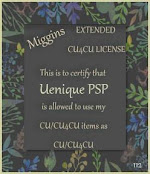
Miggin's Extended CU4CU License

Denise Creationz Unlimited Use License
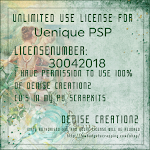
Denise Creationz Unlimited Use License

Denise Creationz CU4CU License
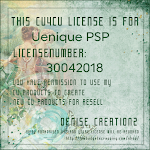
Denise Creationz CU4CU License

KPD Unlimited Use CU4CU License
KPD Unlimited Use CU4CU License

Scraps Dimensions CU4CU Lifetime License
Scraps Dimensions CU4CU Lifetime  License

LMB CU4CU License
LMB CU4CU License

JDD Unlimited Personal Use License
JDD Unlimited Personal Use License

JDD CU4CU License
JDD CU4CU License

Freek's Creations CU4CU License

Freek's Creations Unlimited Use License

Angelaz Creationz CU4CU License

Bubble's Dreams CU Lifetime License